> ## Documentation Index
> Fetch the complete documentation index at: https://docs.grain.inc/llms.txt
> Use this file to discover all available pages before exploring further.
# Overview & Navigation
> Navigate the Grain Dashboard and understand its key features
## Welcome to the Grain Dashboard
The Grain Dashboard is your central hub for managing crypto payment processing. From here, you can monitor transactions in real time, track payouts, and configure your account settings.
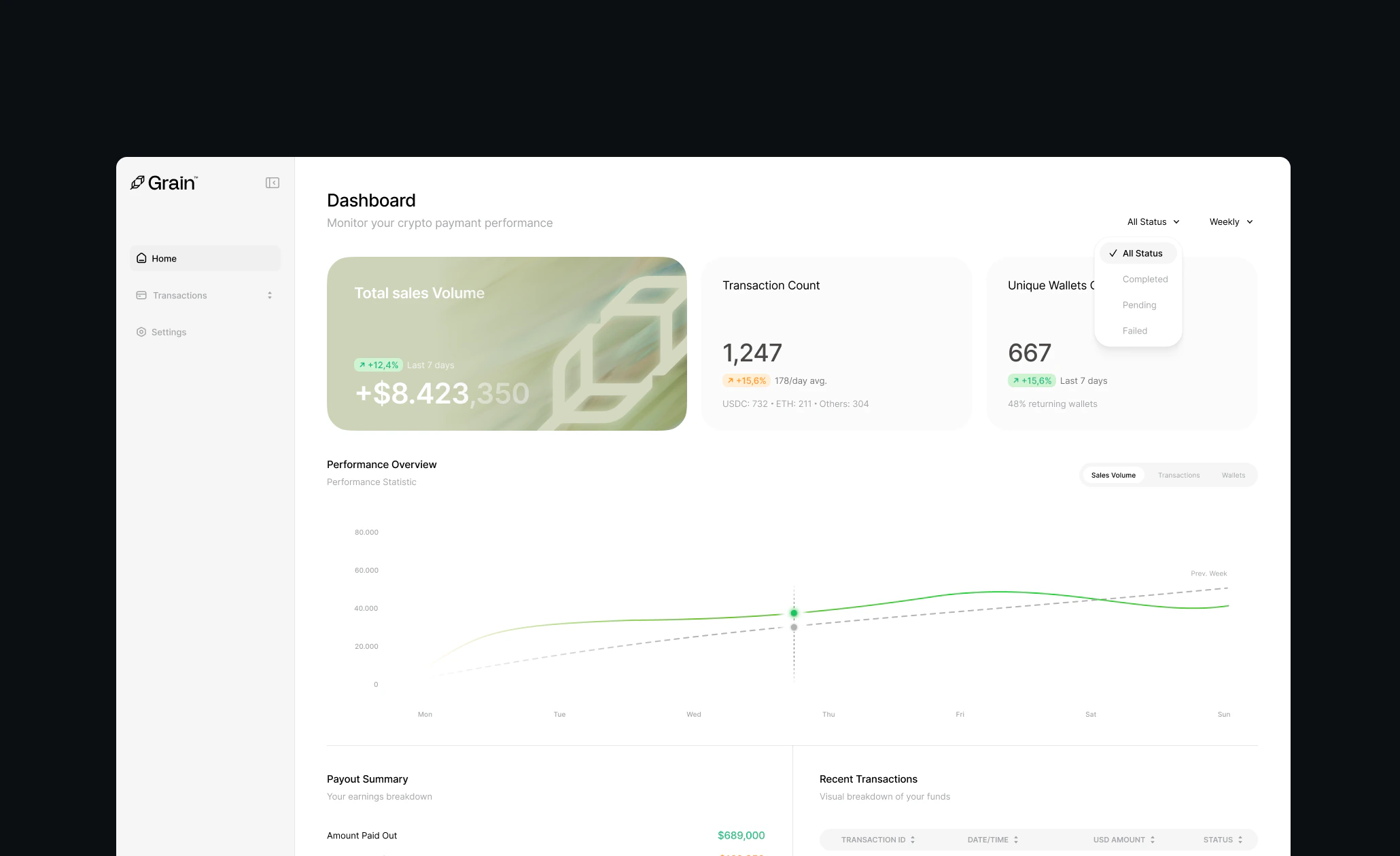 After signing in at [dashboard.grain.co](https://dashboard.grain.co), you land on the **Home** screen with a snapshot of your sales volume, transaction count, and recent activity.
## Main Navigation
The primary navigation runs along the left side of the dashboard, organized into three main areas:
### Dashboard
Your command center with key metrics, a performance chart, payout summary, and recent transactions — everything you need at a glance.
### Transactions
A detailed log of every payment that flows through your Grain integration. Filter by status, date range, search for specific transactions, and export to CSV.
### Settings
Manage API keys and webhooks, choose which cryptocurrencies to accept, invite team members, configure security, set notification preferences, and manage billing and payouts.
## Quick Links
Track sales volume, transaction count, and unique wallets.
Filter by status and visualize trends over time.
View payout summary and latest transactions.
Find specific transactions and export to CSV.
View a full breakdown of any payment.
Access API keys and configure webhook endpoints.
Choose which cryptocurrencies and networks to accept.
Invite and manage team members.
Enable 2FA and manage IP whitelists.
Configure email alerts for important events.
Manage payout schedule and bank account.
## Environment Switcher
Use the environment toggle in the top-right corner to switch between **Sandbox** and **Production**. Sandbox mode lets you test your integration with simulated transactions before going live.
Start in Sandbox mode to verify your integration end-to-end. When you are ready, switch to Production and generate live API keys from the **Settings** page.
After signing in at [dashboard.grain.co](https://dashboard.grain.co), you land on the **Home** screen with a snapshot of your sales volume, transaction count, and recent activity.
## Main Navigation
The primary navigation runs along the left side of the dashboard, organized into three main areas:
### Dashboard
Your command center with key metrics, a performance chart, payout summary, and recent transactions — everything you need at a glance.
### Transactions
A detailed log of every payment that flows through your Grain integration. Filter by status, date range, search for specific transactions, and export to CSV.
### Settings
Manage API keys and webhooks, choose which cryptocurrencies to accept, invite team members, configure security, set notification preferences, and manage billing and payouts.
## Quick Links
Track sales volume, transaction count, and unique wallets.
Filter by status and visualize trends over time.
View payout summary and latest transactions.
Find specific transactions and export to CSV.
View a full breakdown of any payment.
Access API keys and configure webhook endpoints.
Choose which cryptocurrencies and networks to accept.
Invite and manage team members.
Enable 2FA and manage IP whitelists.
Configure email alerts for important events.
Manage payout schedule and bank account.
## Environment Switcher
Use the environment toggle in the top-right corner to switch between **Sandbox** and **Production**. Sandbox mode lets you test your integration with simulated transactions before going live.
Start in Sandbox mode to verify your integration end-to-end. When you are ready, switch to Production and generate live API keys from the **Settings** page.